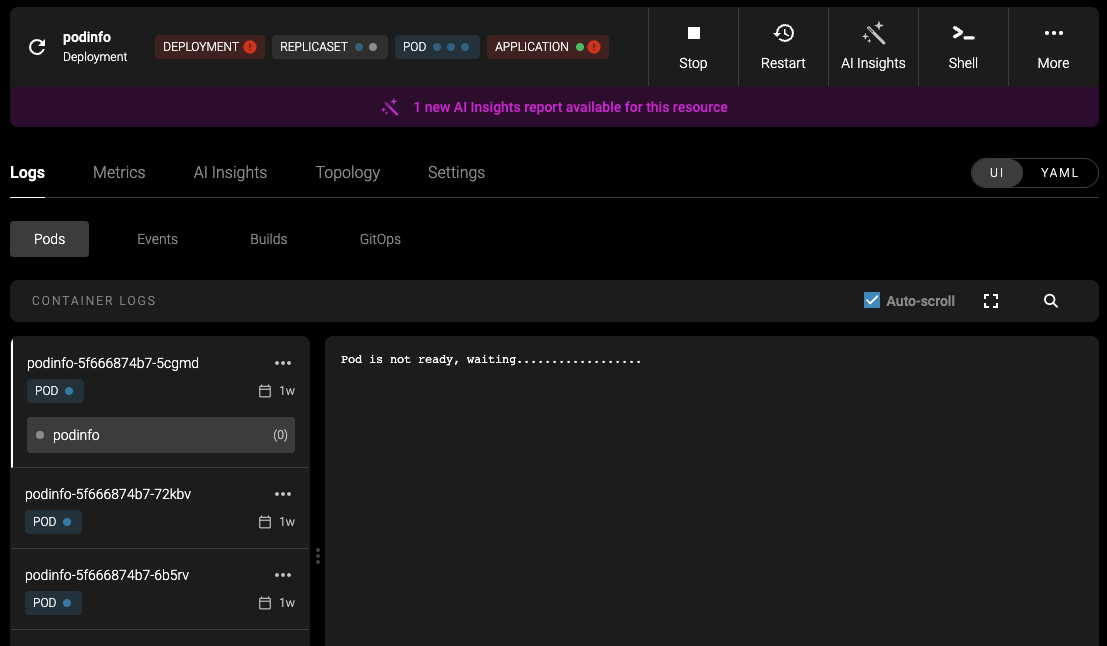
- Summarizes the issue
- Explains why it happened
- Proposes a solution
- If approved by a human, applies the solution
Configuring AI Insights
To activate AI Insights, navigate to your Cluster page and open the AI Insights tab. Start the configuration and use the following form fields to set up your AI agent:- SDK: Choose between OpenAI, Anthropic, or Ollama.
- API Key: If the model endpoint requires authentication, enter an API key or token.
- Model: Select your desired model from the dropdown. If no models appear, check your endpoint or authentication.
- API URL: Enter the model endpoint URL. For OpenAI, the default is
https://api.openai.com/v1. You may also use any OpenAI-compatible API endpoint. - Daily Token Limit: Set a daily token usage limit for the AI agent. Once the limit is reached, new insights will be queued and processed when the limit resets.
Monitor today’s token consumption and see when the limit will reset. Reset token limit
Manually reset the token usage to zero. Delete all AI data
Deletes all existing insight reports from the local database and resets the token usage. The agent will start fresh.
How It Works
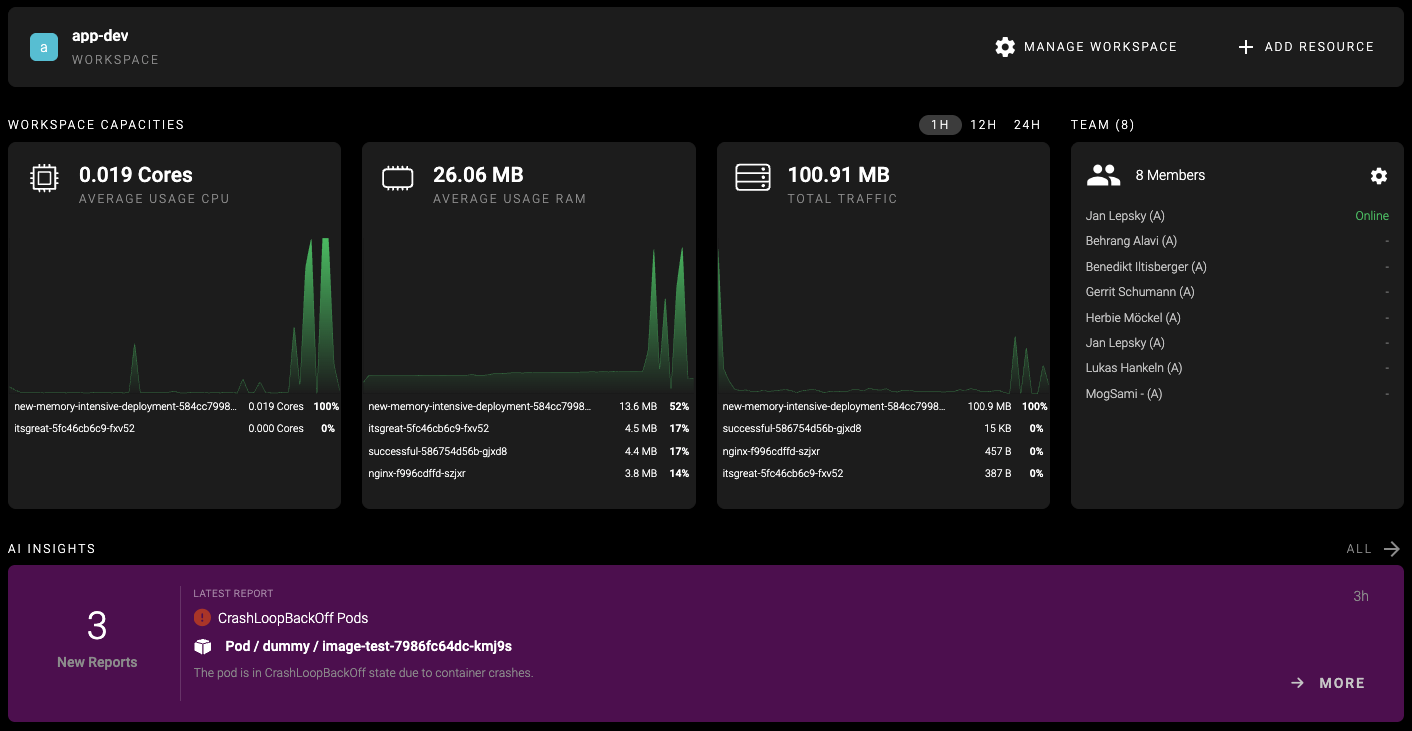
AI Insights operates based on event and status processing in the mogenius operator. It uses filters to define which events it should track. When an event occurs (e.g., a Pod enters aCrashLoopBackOff state), the agent launches an analysis. Depending on the error type, it automatically retrieves the necessary logs, events, and manifests from your cluster to understand the issue.
It then generates a detailed report explaining the root cause and offers step-by-step solutions within mogenius.
Accessing the Reports
All reports are stored locally on your cluster and assigned a status to indicate their progress:- Pending: An event triggered the AI agent and is queued for processing.
- In progress: The agent is currently generating the report.
- Completed: The report is finished and ready for review.
- Ignored: The report was dismissed by a user and won’t be shown on dashboards or resource pages.
- Resolved: The proposed solution was accepted and the issue resolved.